Transfer Attendance
Transfer attendance allows you to move the attendance logged on one record over to another. This is commonly used to consolidate information when you find a duplicate record.
Access Transfer Attendance
To access from the Button Bar, go to Attendance > Transfer.

Transfer Attendance From One Person to Another
-
Enter a Date Range
The default date range is for the current year. To expand or narrow that range, choose your dates and click
 . Text on this button appears in dark red when changes have not yet been applied. Use the
  and
and  buttons to quickly change the year.
 -
Select 'From' Attendee

On the left side, search for the attendee with the attendance information to transfer. Include Inactive records with the check-box above the drop down.
Only those with attendance in the specified date range will list in the drop down.
-
Select Attendance Date(s)
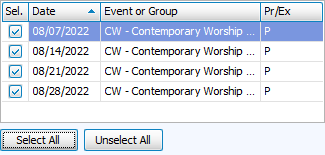
Attendance recorded for the 'From Attendee' will list in the area below. You can
 if all entries need to be transferred or
  to check individual entries in the Sel. column.
 -
Select 'To' Attendee

On the right side, search for the attendee to whom the attendance should have been recorded.
-
Transfer Selection
Click
 .
.Confirm the transfer.
Go to Browse Attendance to view your changes.